📝 Edit a Rule
Use this screen when you want to change the contents of a rule you created.
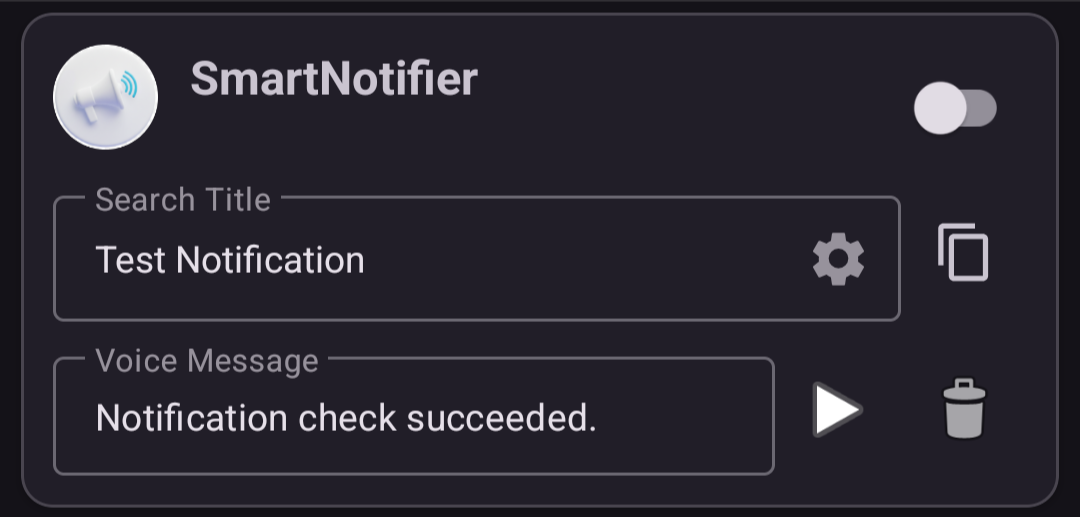
🆎 Notification title condition
- Set part or all of the notification title you want to announce by voice.
- The rule uses partial matching for the configured word. For example, if you set “test” as the notification title condition, titles such as “test notification” and “notification test” will match.
- If this field is blank, the notification title is ignored and the voice announcement is played.
-
You can register multiple word patterns, but each identical word can be registered only once.
When there are multiple search words, the first pattern found by searching the words in ascending order is announced.
If the field is blank, the voice announcement is played when the search reaches the end of the pattern list.
🎤 Voice message
- Set the content of the voice announcement.
- If this field is blank, the app plays the default announcement: “A notification has arrived from
."
✅ Enabled
- Enables or disables the voice announcement rule. For details, see Enable the voice announcement rule.
 Duplicate (copy)
- Adds a duplicate of the voice announcement rule.
To avoid duplicating the notification title condition, a number is added to the end of the copied notification title condition.
🗑️ Delete
- Deletes the currently selected voice announcement rule.
▶️ Play voice announcement
- Reads the voice message aloud for confirmation.